Cujo AI, NordVPN, NetGear Nighthawk a headache for hackers
Cujo AI, NordVPN and NetGear Nighthawk could be a real headache for any hackers to get inside your network. Has your network been attacked a couple of times already? Maybe your devices are infected and probably performing poorly? You are not feeling safe when you need to work with sensitive information online? You are afraid, that someone knows where you are connected to the internet (your IP address and location, in more simple words)? Worry no more! We have been in the same situation as well. Just a very long time ago.
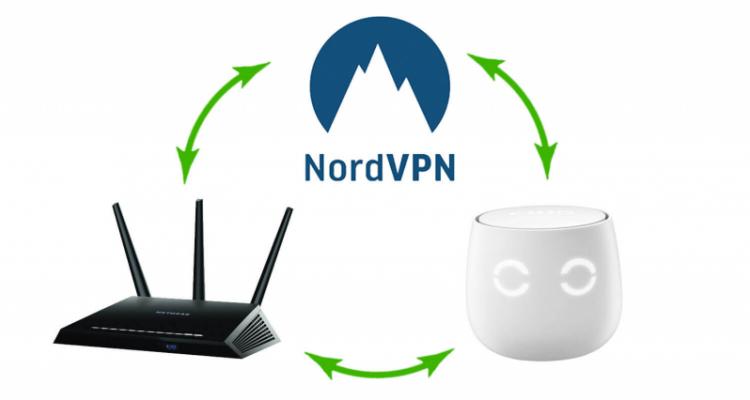
Today, we would like to tell you more about the setup of the well-protected home network. Like any good recipe, this one includes some "great ingredients":
- A router or router/modem combo box provided by your ISP;
- A Smart Firewall solution, that we love and are using for a long time;
- NordVPN service. A VPN service that we trust. It provides required privacy;
- A DD-WRT Flash capable router. This time our weapon of choice here is NetGear R7000 nighthawk.

Buy Netgear R7000 Nighthawk now
Let's start by talking about each one of these "ingredients" in more details.
And the first "node" in this setup is your gateway router. Usually, ISPs are providing these devices and allow you to have some basic connection via LAN ports and some beer minimum Wireless networking capabilities. So, we will be keeping this device as it is. It will give us a window to reach the world wide web.

The second device would be CUJO. It’s a Smart Firewall device packed with cybersecurity features. This device is easy to setup and will be connected to the main router (in our case - NetGear R7000). It will give us such features as Parental Controls, device intelligence, networking time scheduling, full encryption of everything that you are doing on the web, URL/IP Filtering, real-time notifications, and other awesome stuff, that we can talk about for hours or maybe even days. Best of all, CUJO is pretty simple to setup and even if you are running into some kind of issues – they have an amazing tech support team, that is always ready to help and answer all your questions. It’s like having your personal “networking concierge” anytime you need.

The third ingredient - NordVPN service. This product will provide you absolute online freedom and fully protected privacy. They use double data encryption, 2689 servers worldwide in 56 different countries and strict “No Logs” policy. This product is simple to use and has a full recommendation from us. It’s basically our choice of VPN service that is available today.
And finally, NetGear R7000 router. This router is packed with lots and lots of features and is highly customizable. Powerful processor, amazing Wireless networking capabilities, QoS, Beamforming antennas – that’s just a few of its features, that impressed us quite a bit. And it can run DD-WRT firmware, that is required in order to use NordVPN.
Now, let’s get to the business. Before flashing a router, it’s wise to follow these rules:
- Download the Stock Firmware of your NetGear R7000 so you can go back if needed (the best way to get is to visit manufacturer’s website).
- Downloaded the latest DD-WRT version for your NetGear R7000 (you can always find the firmware for a particular router on this website HERE).
- Disable WiFi on the computer (desktop or laptop) that you use for flashing your router.
- The computer you’re using for flashing should be wired to the router (ethernet) by network cable (RJ45).
- Make sure the power source of your router and computer are reliable other you can damage your router.
- Make a backup of your router’s config (If you bought your router new – you can simply skip this step).
- Make sure you have your Cable/DSL login info handy (if applicable).
- Clear the browser cache before and after flashing.
- Reset the router always to default settings after flashing.
Step 1 – Clear your Browser Cache
It might not be needed, however, we do recommend this as well as the developer of the DD-WRT firmware.
For Google Chrome, you can find it under the “File” menu (Windows) and for MacOS X under the “Chrome” menu. (Wiki How has a page that covers most browsers).
Step 2 – Go to your Router’s admin page
Go to the admin page of your router and login. The default admin page for your router (a NetGear R7000) is: http://192.168.1.1 (Which should work, unless you really changed the default settings of your router’s LAN configuration)
It’s recommended to actually use the IP Address of your router and not the router name!
If this doesn’t work for some reason, you can look for the IP information of your network connection and copy the IP address mentioned there for the “Default Gateway“. For Windows just simply type in a DOS box the command ipconfig. (How to get to DOS box? Press Start + R and type in cmd. This will give you the right to us ipconfig command).
On MacOS you need to go to “System Preferences” > “Network” and choose your active network connection. It should provide you the right IP address.
If you are a Linux user, then type ifconfig in a shell/terminal.
Step 3 – Uploading the DD-WRT firmware
Now, go to the tab called “Advanced”, in router’s user interface, then “Administration” > “Router Update” and after that, just simply click “Browse”. At this moment you need to select the downloaded DD-WRT firmware file and click “Upload”.
You might get a “loss of Internet connection” warning first. Do not worry, just click “OK“, and after that, a comparison of firmware versions will appear.
In our case, it gave me the message that both version where the same, which of course isn’t true, but it might also tell you that they are different (more correct) or even older. Either way, don’t worry, just make sure you selected the right firmware file and then you are 100% sure, click “Yes” to continue.
After uploading new firmware your router will reboot.
Step 4 – First DD-WRT login
After that reboot, the first DD-WRT login will appear. And you will be asked for a new username and password. Enter a new username and password to login. ( As always, give it a strong password!)
When you will be inside the new firmware - you’ll be presented the initial System Information of your new DD-WRT Router.
Step 5 – Router Settings to Factory Defaults
Now when we have access to our DD-WRT configuration, it’s a good time to flush potential left-overs from the NetGear stock firmware by doing a Factory Reset.
From the main tabs, choose “Administration” > “Factory Defaults” > “Yes” > “Apply Settings“.
The factory reset will result in a router reboot, and in some cases, it might get stuck on a white page (http://192.168.1.1/apply.cgi). If the latter is the case, wait a minute or so and try the default router address (http://192.168.1.1) again. The sequence of a new username and new password has to be completed again.
That’s it. If you are running into some kind of issues, you can use this link, for this particular router’s setup procedure HERE.
At this point, we can proceed by connecting CUJO Smart Firewall to your NetGear router. Just use the first LAN port of CUJO and any of LAN port on your router (be careful and do not plug this device into the WAN port!). Install CUJO App and it will guide you through the setup procedure pretty much seamlessly.
If you are getting any kind of errors or cannot complete the setup procedure, you can always consult with CUJO's tech support guys and find more information on their website cujo.com
Now, let’s finish our safe and your privacy respecting network setup by configuring NordVPN on your NetGear router.
- In the DD-WRT firmware’s Administrative Interface, go to “Setup” > “Basic Setup”. Under Network Address Server Settings (DHCP), set these NordVPN DNS addresses:
Static DNS 1 = 162.242.211.137
Static DNS 2 = 78.46.223.24
Static DNS 3 = 0.0.0.0 (default)
Use DNSMasq for DHCP = Checked
Use DNSMasq for DNS = Checked
DHCP-Authoritative = Checked
Then, simply click “Save” and after that “Apply” settings. - Navigate to “Setup” > “IPV6”. Set IPv6 to Disable, then “Save” & “Apply” Settings.
This step is necessary to be sure that you will not be getting any IP leaks. - Navigate to “Service” > “VPN”. Under OpenVPN Client, set Start OpenVPN Client = Enable, to see the options necessary for this configuration. Then set the following:
- Server IP/Name = we have used us936.nordvpn.com, but you should connect to a server suggested to you at https://nordvpn.com/servers/#recommended . You can find the server hostname right under the server title.
Port = 1194
Tunnel Device = TUN
Tunnel Protocol = UDP
Encryption Cipher = AES-256-CBC
Hash Algorithm = SHA-512 (note: older NordVPN servers use SHA-1 instead. If SHA-512 does not work, select SHA-1)
User Pass Authentication = Enable
Username, Password = Your NordVPN credentials
Advanced Options = Enable (this will enable additional options)
TLS Cipher = None
LZO Compression = Yes
NAT = Enable
Bear in mind that the options not mentioned in this guide should be kept with default values! - In Additional Config box either enter or copy/paste these commands: remote-cert-tls server
- remote-random
- nobind
- tun-mtu 1500
- tun-mtu-extra 32
- mssfix 1450
- persist-key
- persist-tun
- ping-timer-rem
- reneg-sec 0
- #log /tmp/vpn.log #Delete `#` in the line below if your router does not have credentials fields and you followed the 3.1 step: #auth-user-pass /tmp/openvpncl/user.conf
- Download the CA and TLS certificates from your Downloads Area, which you can find in your account on NordVPN’s website: nordvpn.com/profile/
- You should then unzip it using your extractor (WinRar, 7-zip or other archives managing program of your choice). After that, you should be able to see “CA and TLS auth certificates” folder.
- Let’s open the CA.crt file of the server you chose to use with a text editor, like Notepad.
- Copy its contents into the CA Cert field. Be sure the entire text gets pasted in, including
- -----BEGIN CERTIFICATE----- and -----END CERTIFICATE----- lines, that’s very important!
- Open the TLS.key file of the server you chose to use with a text editor.
- Copy its contents into the TLS Auth Key field. Be sure the entire text gets pasted in, including
- -----BEGIN OpenVPN Static key V1----- and -----END OpenVPN Static key V1----- lines, yet again these lines are very important!
- After entering all this data, “Save” and “Apply” Settings.
- To Verify that your VPN connection provided by Nord VPN is working, navigate to “Status” > “OpenVPN”. Under “State”, you should see the message: Client: CONNECTED SUCCESS.
- If you would like to create a kill-switch, you can go into “Administration” > “Commands”, and enter this script:
- WAN_IF=`nvram get wan_iface`
- iptables -I FORWARD -i br0 -o $WAN_IF -j REJECT --reject-with icmp-host-prohibited
- iptables -I FORWARD -i br0 -p tcp -o $WAN_IF -j REJECT --reject-with tcp-reset
- iptables -I FORWARD -i br0 -p udp -o $WAN_IF -j REJECT --reject-with udp-reset
- Then select “Save Firewall” and go into “Administration” > “Management” > “Reboot router”.
Congratulations, now you have a fully protected home network that is a true headache for hackers to get inside! Now you can enjoy total privacy, safe online banking and some extra feature as Parental Controls, that CUJO Smart Firewall is providing for you.
Recommended Posts